Mega Man X2
A Mega Man X2 randomizer for Archipelago.
Latest release: v2.0.6
A Mega Man X2 randomizer for Archipelago.
Latest release: v2.0.6
This game is very similar to any other SNES game in Archipelago, you can follow any of these guides or keep reading this one. Your choice.
.exe file
67905b989b00046db06df3434ed79f04.apworld in your Archipelago/custom_worlds folder, or double-click the .apworld to do so automatically.ArchipelagoLauncher.exe to open the Launcher, and click on Generate Template Options to create template yamls for your custom .apworlds.Players folder, and customize them as you see fit.ArchipelagoGenerate.exe to generate the game..apmmx2 file with ArchipelagoLauncher.exe, it should create a ROM file and open SNI Client.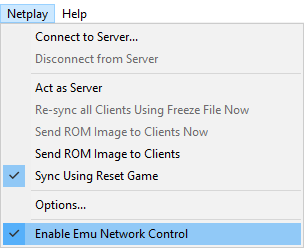
Ctrl+R).Connector.lua file that you downloaded above onto the main EmuHawk window.
/SNI/lua/.Script 〉 Open Script, and navigate to Connector.lua with the file picker.manage_files.exe inside of the SNI folder in your Archipelago install is recommended.NOTE: If you want to reset or swap games, ensure you're disconnected from the Server first! Otherwise SNI will tell SNIClient some dirty lies about the state of the game and may clear locations for you, or worse, goal the game.
/SNI/lua/socket.dll missing or similar, navigate to the folder of the lua you are using in your file explorer and copy the socket.dll to the base folder of your snes9x install.NOTE: Do not reset with the emulator options! It'll completely garble the game RAM and tell SNIClient some dirty lies about the state of the game, which can result on sending out a bunch of locations or goaling the game.
Universal Tracker is a custom APWorld that allows players to generate a list of in-logic locations for the current slot, very useful when trying to figure out why is something suddenly appearing as reachable.
| Feature | Supported? |
|---|---|
| Logic tracking | ✔️ |
| YAML-less tracking | ✔️ |
/explain |
✔️ |
/glp |
✔️ |
| Glitched Logic | ❌ |
| Deferred Entrances | ❌ |
| Map Tracker Tab | ❌ |
| Player location in Map Tracker | ❌ |
/explain "location name": It outputs the logic rules for a specific location, showing which item combinations will make it appear in logic./glp "location name": Shows a list that explains how to reach to a certain location in the game.The APWorld comes with a Manager software that gets added into the Archipelago Launcher which allows players to toggle certain options and swap palettes!
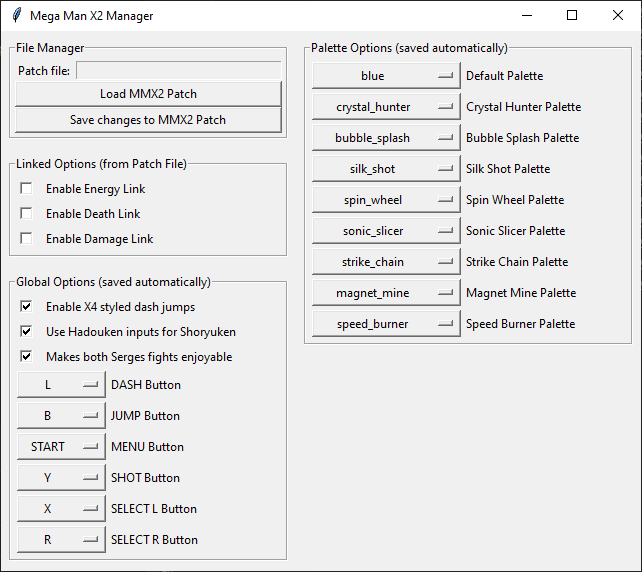
This section allows players to enable or disable Link protocols from a given patch file in case they don't want to run it. They overwrite their YAML setting.
Those options persist across slots, so you don't have to deal with weird combinations in such cases where players have to play someone else's slot.
long_jump in the YAML file. Allows players to perform dash jumps without having to perform a dash first, which means you can just hold the dash button and keep jumping to perform a dash jump.Here players can select which palettes will be used for X and him using different weapons. This includes palettes from every SNES game.